Clipman

Wayland-native clipboard history

Clip once.
Paste forever.

Clipman is a fast, GTK-native clipboard history manager for Ubuntu and GNOME on Wayland — with search, pinning, snippets, and a privacy mode that actually pauses recording.

  • Snap Store38 territories
  • Ext #9407GNOME Shell extension
  • clipman-clipboardPyPI · AUR
  • 100%Wayland-native
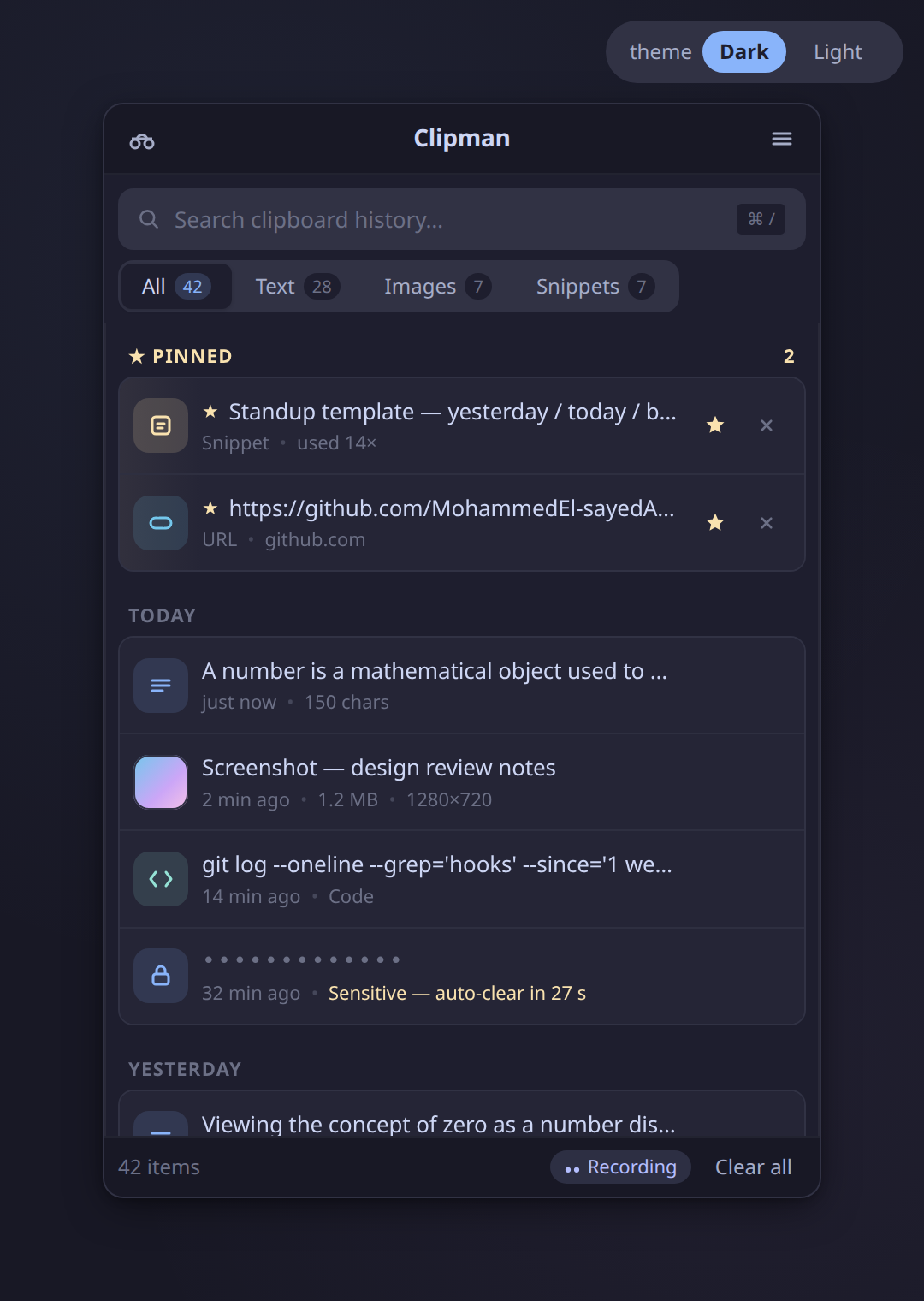
The Clipman popup window with search field, filter tabs, pinned items and a day-grouped clipboard list

Live preview

Clipboard history shouldn't be a leap of faith.

This is the redesigned main popup, embedded right here. Flip through real states — full history, empty, no-results, incognito paused — without installing anything.

Live mockup Click a state to swap the popup's contents.
Live preview, running right in this page. Click through the states to see how the popup adapts. Open the full design workspace →

By the numbers

Already running across 38 territories. On every channel that matters.

Live counts pulled straight from GitHub, the GNOME Extensions registry, and PyPI on page load. No analytics, no dashboards — just the public numbers anyone can verify.

GitHub stars
stargazers
Forks
github forks
Release downloads
github releases
GNOME extension
total installs
PyPI
downloads · last 30 days

What it actually does

Four habits, one keystroke.

The thing you copied yesterday is one keystroke away.

Super+V opens the popup. Type to full-text search across text and images. Pin what you reuse. Save snippets with templates. Filter tabs split All, Text, Images, and Snippets.
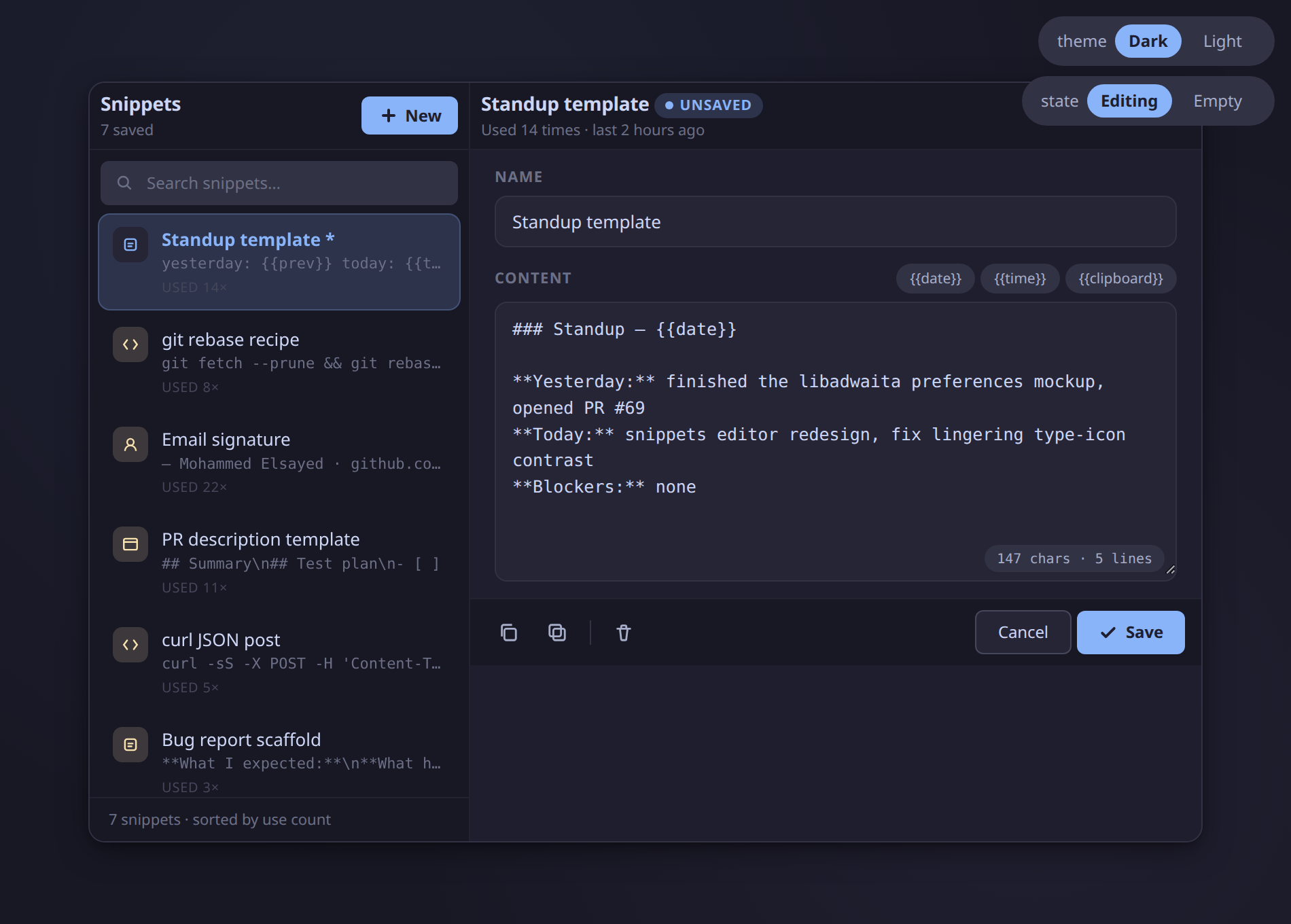
The snippets editor mockup showing a searchable list on the left and an editor form on the right with monospace content and {{date}} variables

Your passwords leave on their own.

Incognito mode pauses recording entirely. Passwords, tokens, and card-shaped strings auto-clear after 30 seconds. The history file ships with restrictive permissions (0600) by default.
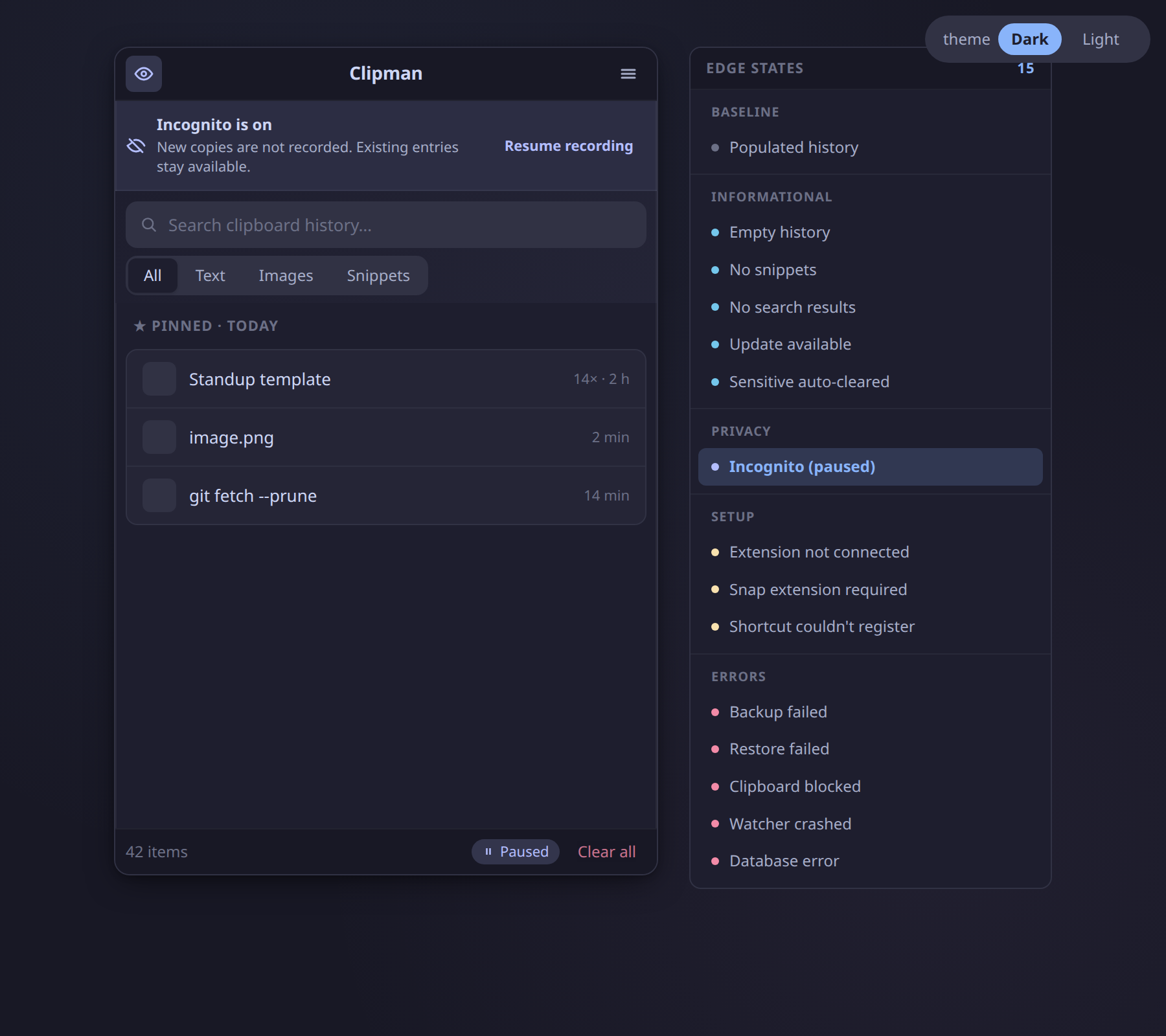
The popup in incognito mode showing a banner that recording is paused, with a Resume button

No polling. No subprocesses. No flicker.

A GNOME Shell extension forwards clipboard events over D-Bus, so the daemon wakes only when you copy. wl-clipboard handles KDE, Sway, and Hyprland the same way — event-driven, no busy-loop.
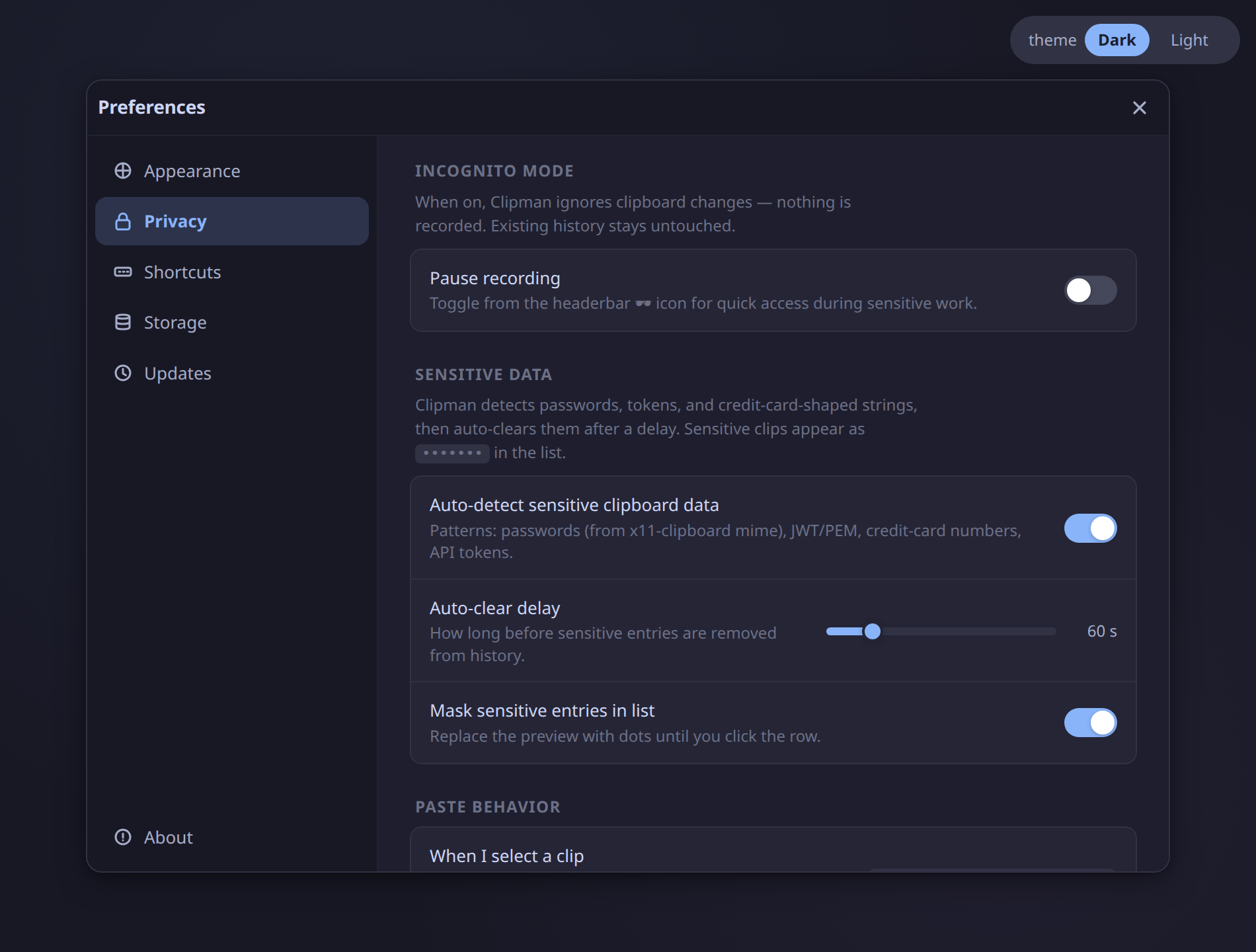
The Privacy preferences pane showing incognito switch, sensitive-data auto-clear toggle and timeout slider

Looks like the rest of your desktop, on purpose.

Catppuccin Mocha for dark, stone for light. Six accent presets, opacity 30–100 %, font size 8–20 px. Built on GTK and libadwaita with a single design-token system so the theme behaves identically on every surface.
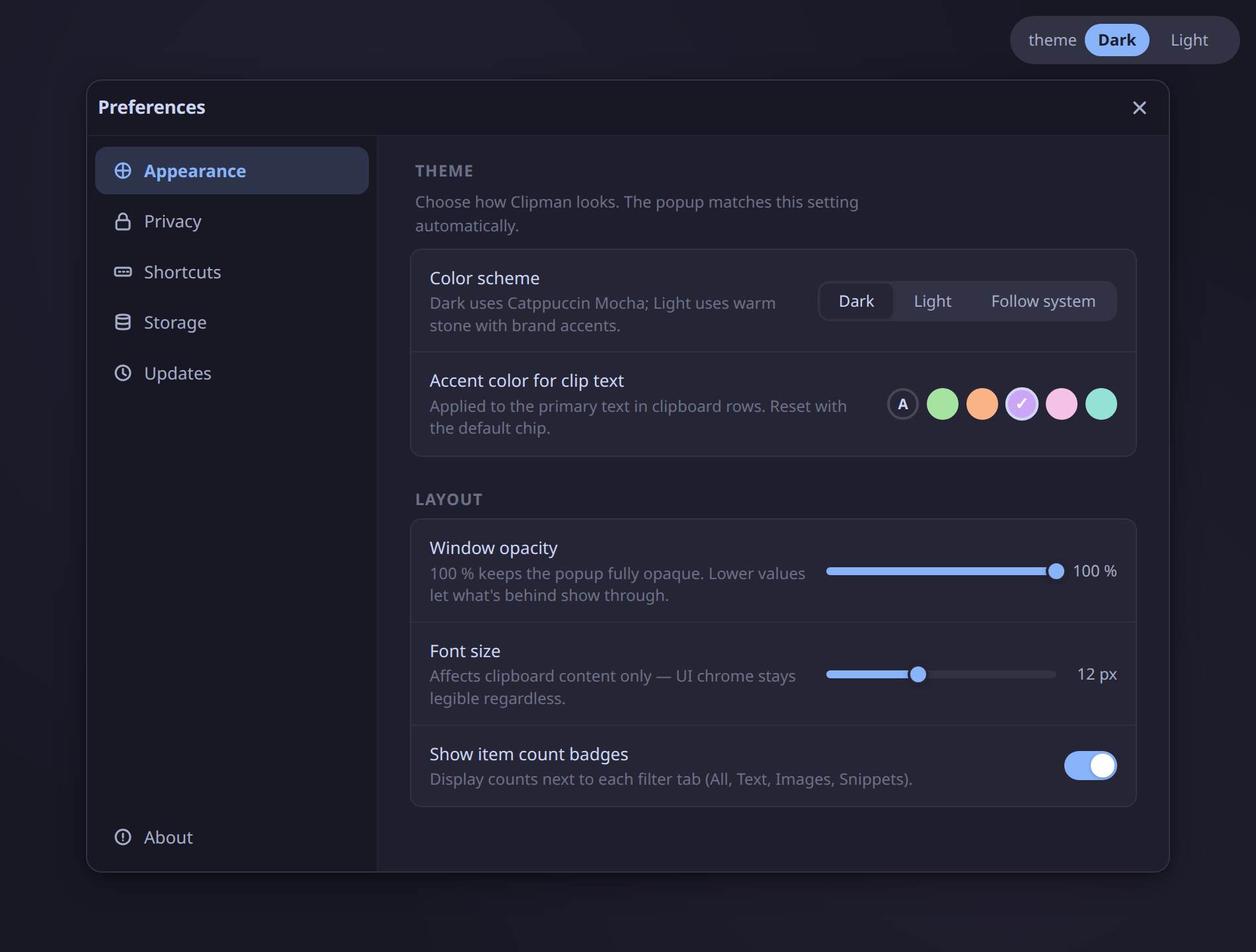
The Appearance preferences pane with theme picker, accent swatches, opacity and font-size sliders

Sixteen polished states for the moments that matter.

Empty history, no-results, incognito paused, sensitive auto-cleared, first-run, extension missing, backup failed — every edge is intentional and consistent across the app, with a tone that never shouts.
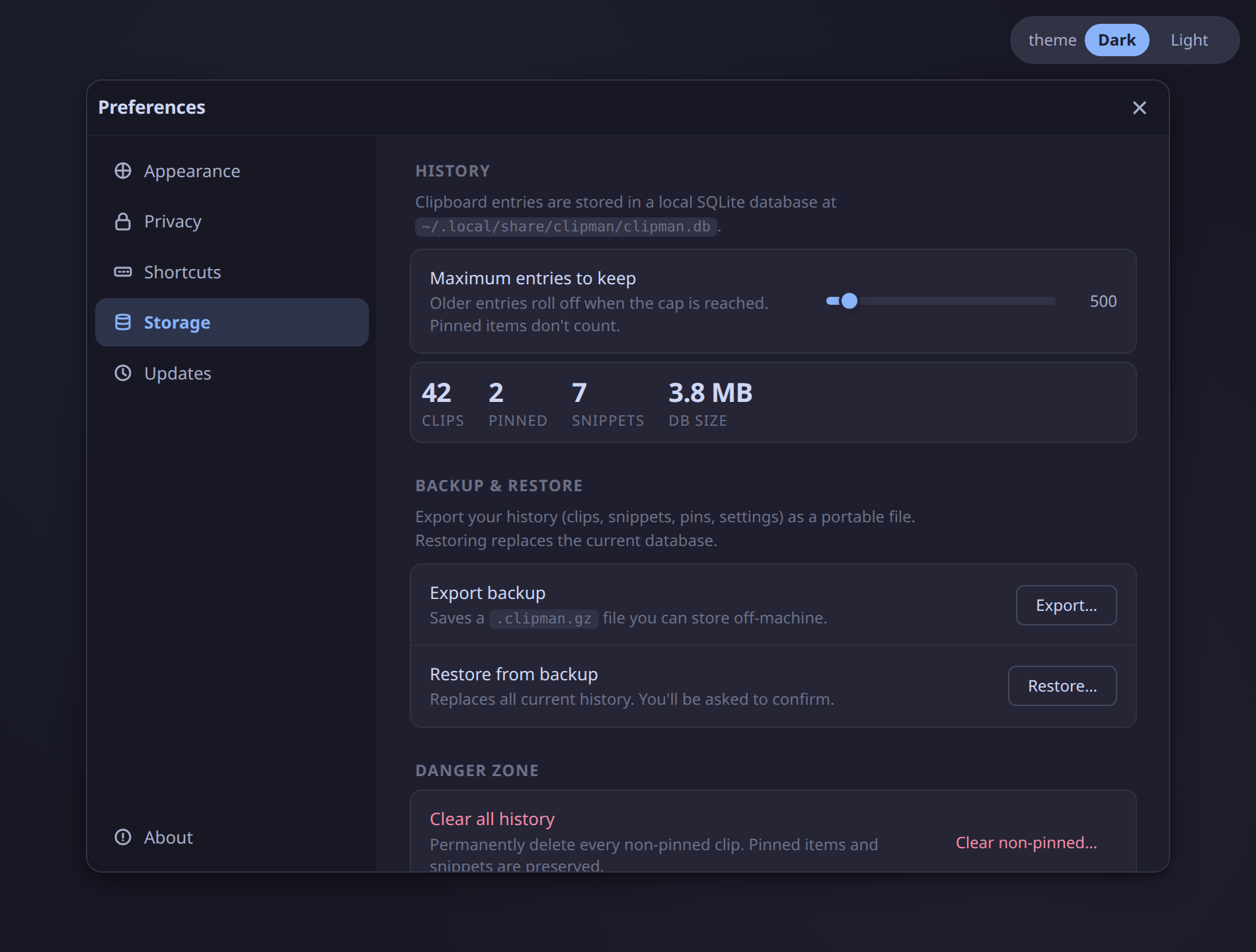
The Storage preferences pane with the maximum-entries slider, live database stats, and backup/restore actions

Get Clipman

One command. Then Super+V.

Snap is the easiest on Ubuntu/GNOME. PyPI works on any distro with Python 3.10+. Arch users get a maintained AUR package. The .deb and .rpm builds ride the GitHub Releases page.

sudo snap install clipman

Log out and back in once to activate the GNOME Shell extension, then press Super+V. · snapcraft.io/clipman

FAQ

Questions you'd actually ask before installing.

What is Clipman?
A clipboard history manager for Linux desktops on Wayland. Press Super+V and a popup shows everything you've copied recently — text and images, searchable, pinnable, with reusable snippets. It runs as a local Python + GTK daemon and stores history in a per-user SQLite database with restrictive file permissions.
How is Clipman different from CopyQ, Klipper, or GPaste?
Three things. First, it's Wayland-native: a GNOME Shell extension watches the clipboard over D-Bus, so there's no polling loop and no subprocesses constantly probing the clipboard. Second, it's quiet — no Electron, no background services beyond a small Python daemon. Third, privacy is built in by default: incognito mode pauses recording entirely, and sensitive-shaped data (passwords, tokens, credit-card-like strings) is auto-cleared on a 30-second timer.
Does Clipman work outside GNOME?
Yes. The GNOME Shell extension (ID 9407) is the smoothest path on GNOME — events flow over D-Bus with zero polling. On KDE, Sway, Hyprland, and any other compositor with wl-clipboard installed, Clipman falls back to wl-paste --watch, which is still event-driven (no busy-poll). The popup UI is identical either way.
Is my clipboard data ever uploaded anywhere?
No. Clipman is fully local. History lives in a SQLite database at ~/.local/share/clipman/clipman.db with restrictive file permissions (0600). There is no telemetry, no sync, no cloud, and no network access in the daemon code path. Backups are explicit, off by default, and write to a local file you choose.
How does sensitive-data detection actually work?
When something lands on the clipboard, Clipman checks it against local heuristics — Luhn-valid credit-card patterns, JWT/PEM-shaped strings, GitHub-like tokens, password-mime-typed payloads, and a few others. Matches are stored but masked in the list and queued for auto-clear on a configurable 30–300-second timer (default 30 s). Detection runs in-process; no rules are downloaded.
Can I use Clipman without the GNOME extension?
Yes. The extension is an optimization, not a requirement. Without it, Clipman uses wl-clipboard's wl-paste --watch to subscribe to clipboard changes — event-driven, no polling. You lose the Super+V keybinding wired through GNOME Shell, but you can bind any shortcut yourself to call clipman toggle.
What about Wayland's clipboard security restrictions?
Wayland deliberately scopes clipboard access to focused windows, which breaks naive X11-era managers when they're not focused. Clipman doesn't try to fight that — the GNOME Shell extension reads the clipboard from inside the compositor (where it's allowed), and the wl-clipboard fallback uses the protocol's documented data-control or selection paths. Pasting is implemented by simulating a Ctrl+V into the target window, not by writing directly to it.